 Add To Slack

Asking Questions in Channels
By tagging @SIA in Slack, users can instantly trigger automated, secure password resets that verify identity via OTP and update credentials without ever leaving the chat window.
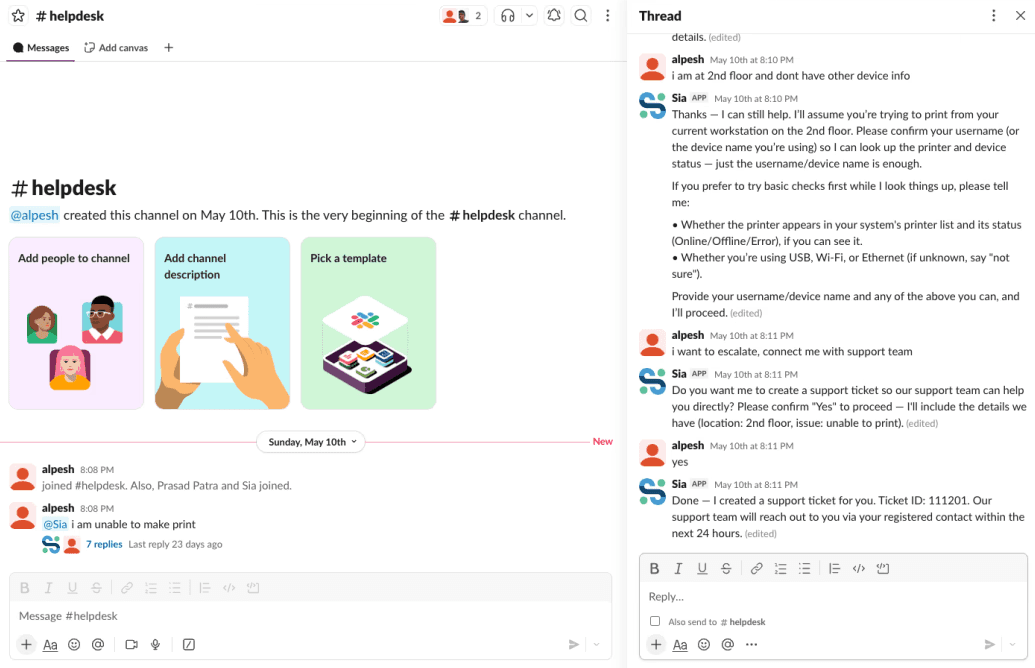
DM SIA to check the status of any open ticket across ServiceNow, Jira, Freshservice, or BMC. SIA pulls the latest update including expected resolution time and who it's currently with.

1
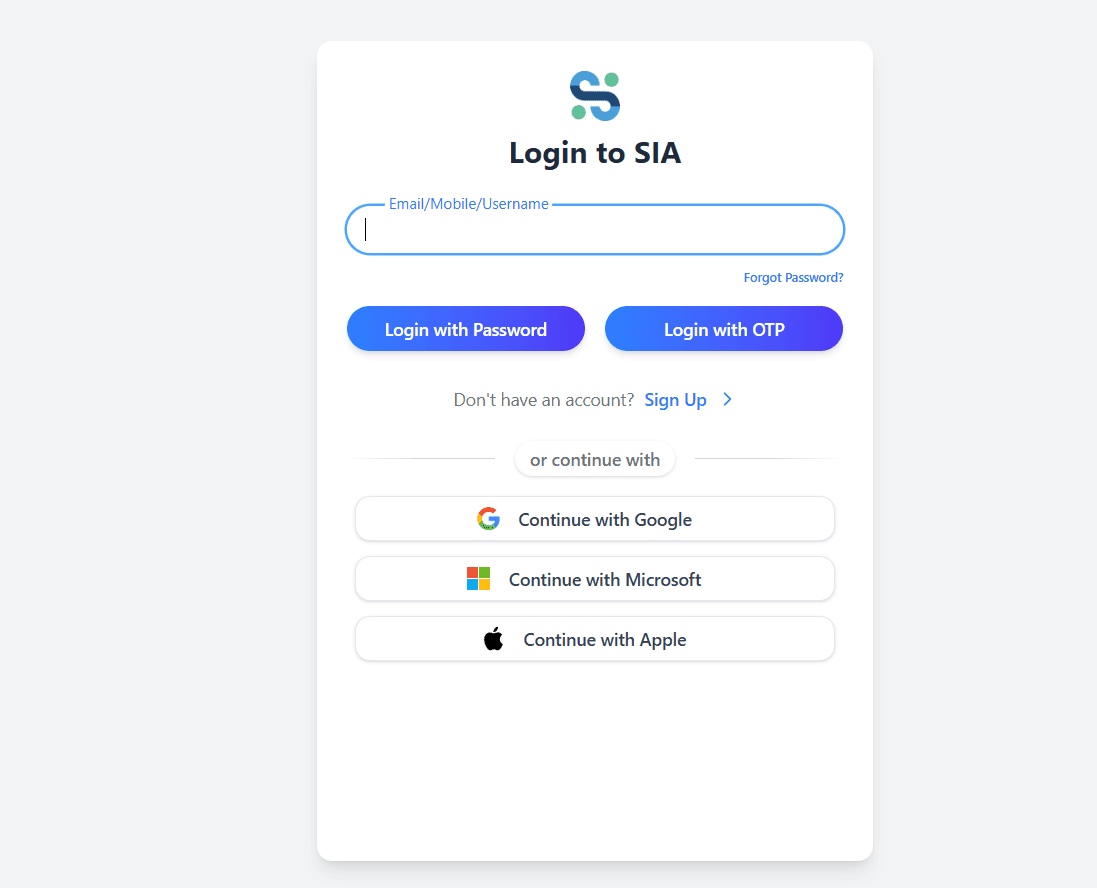
Step 1: Create or sign in to your SIA account
Visit sia.scogo.ai. If you're new to SIA, create an account. If you're already a user, sign in.

2
Step 2: Confirm you have admin permissions
Installing integrations requires Organization Owner or Admin permissions. If you don't have these, ask your SIA admin to install the Slack integration for you.

3
Step 3: Navigate to Agent Fabric → Integrations
From the SIA dashboard, open Agent Fabric in the left navigation, then click Integrations.
4
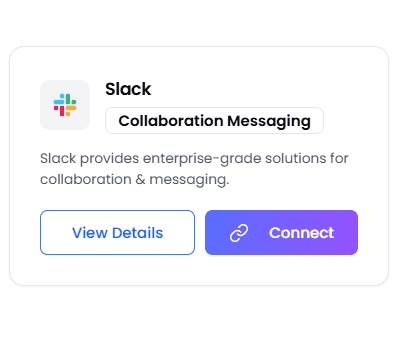
Step 4: Locate Slack under the Social category
5
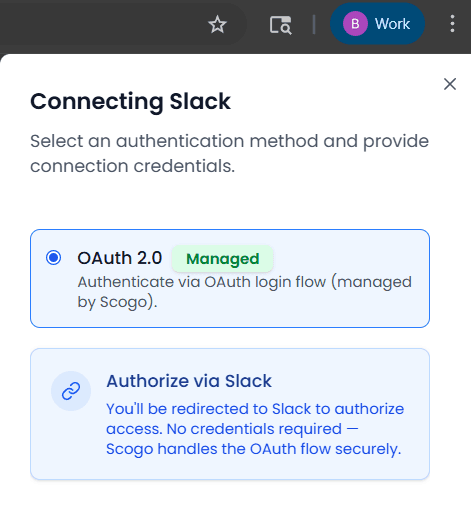
Step 5: Click Connect, then Add to Slack
On the integration page, click "Authorize With OAuth" button — click it to begin secure OAuth authorisation.
6
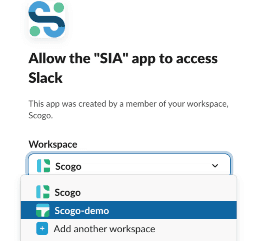
Step 6: Authorise your Slack workspace
You'll be redirected to Slack. Sign in if needed, select the workspace you want to connect, review the permissions SIA is requesting, and click Allow.

7
Step 7: Start using SIA in Slack
You're set. SIA will introduce itself with a welcome DM, and any team member in your workspace can now message SIA in channels or DMs to get work done.
What SIA accesses, and why.

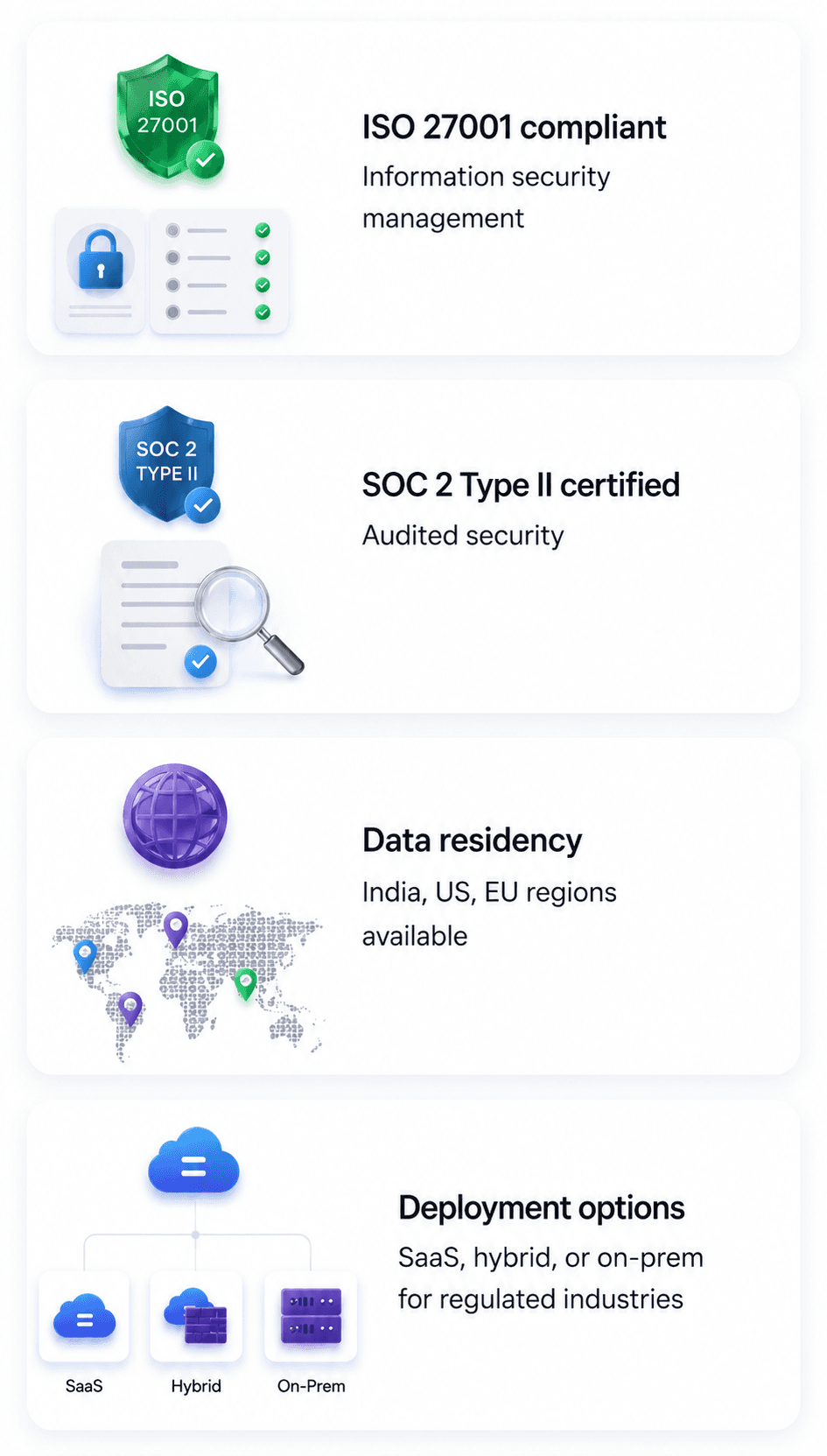
Data handling
What we collect from Slack: Only messages that mention or DM SIA. SIA does not read general channel conversations.
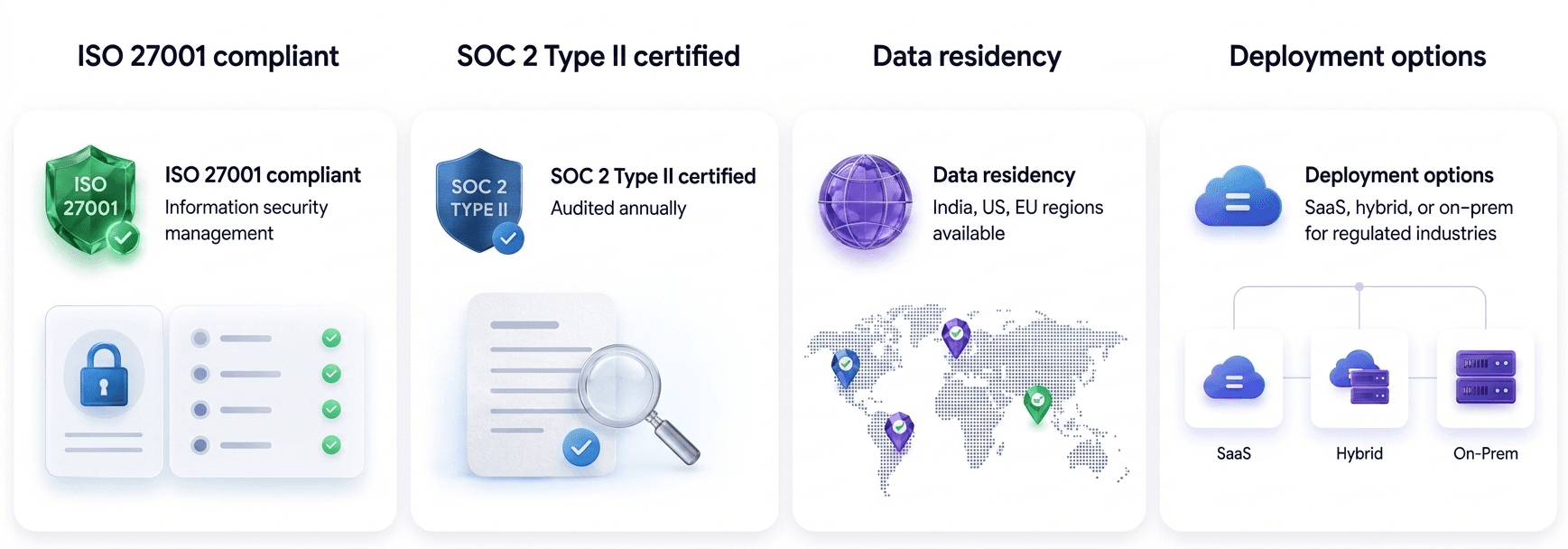
Where it's processed: Scogo's enterprise infrastructure (AWS, Mumbai region for India customers, data residency options available for other regions).
How long it's kept: SIA retains conversation logs for 90 days by default for audit and continuity. Configurable per customer.
Training data: Customer Slack data is never used to train shared models. Period.
Deletion: You can request deletion of all Slack-related data by emailing privacy@scogo.ai or via your SIA admin console.
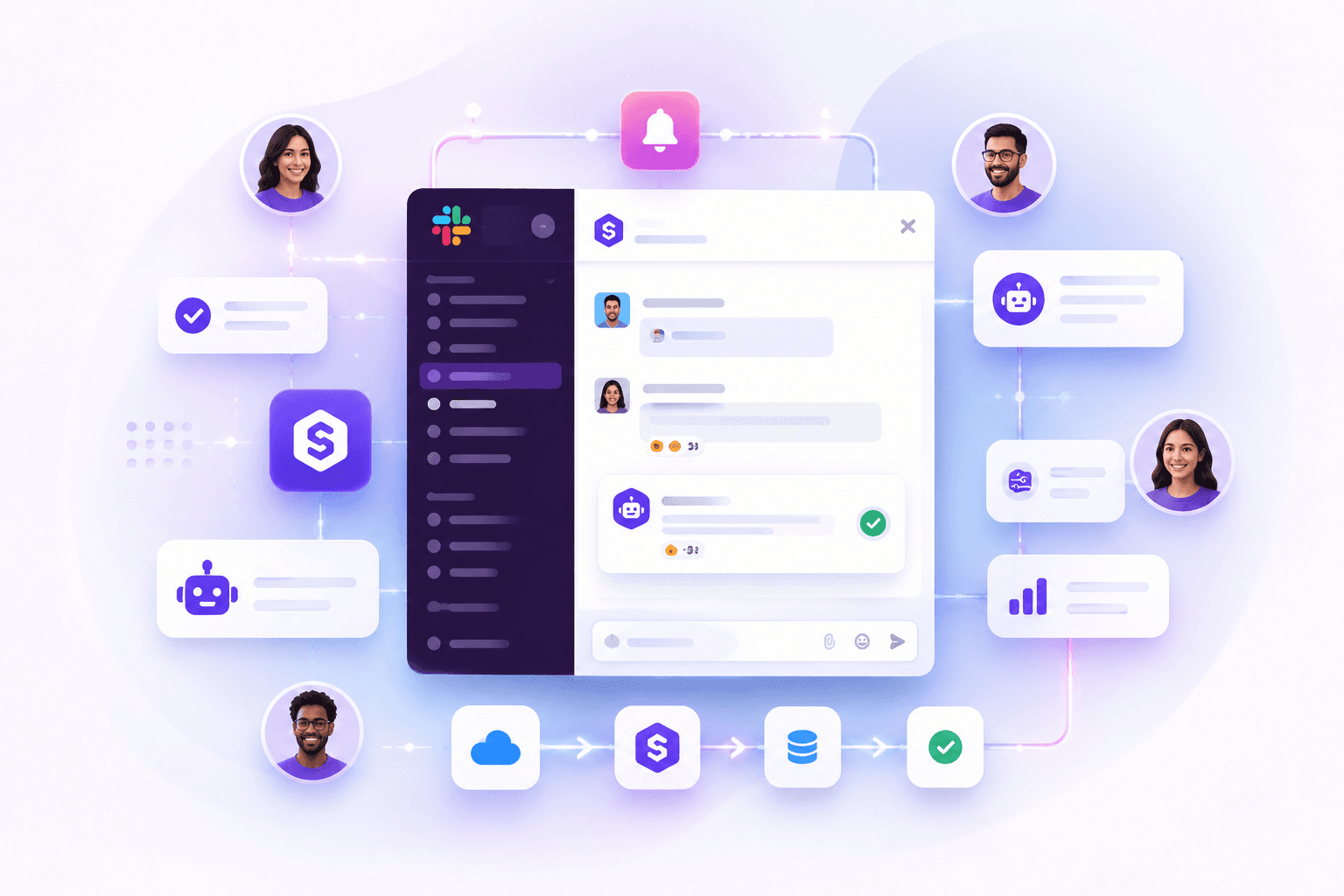
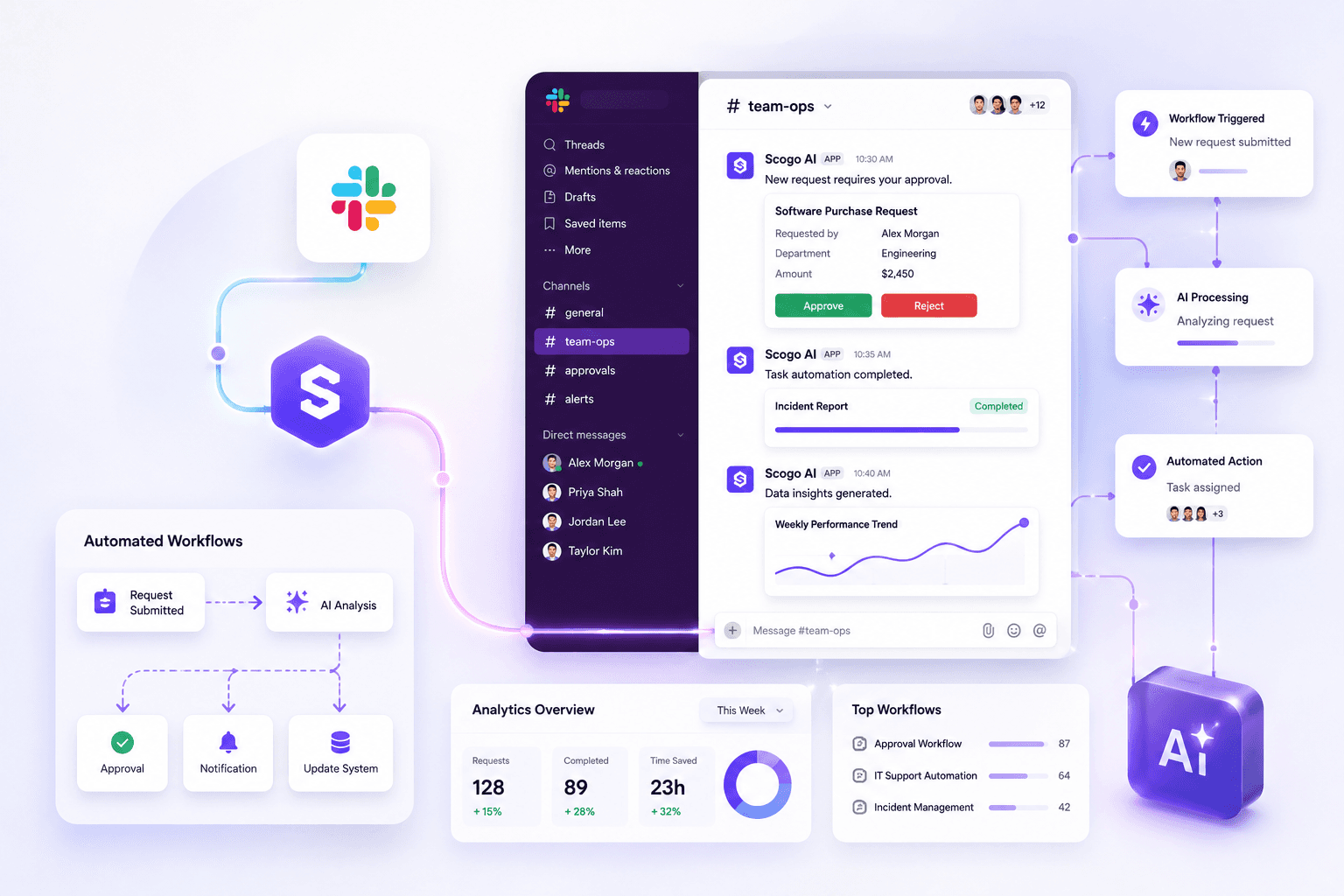
Reset and provision access across systems, raise and update tickets in any connected ITSM, check incident status, run runbooks, and trigger workflows that span multiple enterprise tools — all from Slack.
What permissions does SIA request, and why?
The full scope list is in the Permissions section above. Every scope is the minimum required to deliver the feature it enables. SIA does not request read, post, or broad message-history scopes.
Where is my Slack data processed and stored?
Does SIA work with Slack Enterprise Grid?
Yes. SIA supports workspaces on Free, Pro, Business, and Enterprise Grid plans.
Can I limit SIA to specific channels?
Yes. Workspace admins can scope SIA to designated channels during installation or any time after.
What happens when a user is removed from our Slack workspace?
SIA automatically loses access to that user. Their conversation history with SIA is retained per your configured retention policy.
How do I uninstall SIA?
From your Slack workspace, navigate to Apps → Manage → SIA, then click Remove. Alternatively, from your SIA dashboard, go to Agent Fabric → Integrations → Slack → Disconnect. On uninstall, SIA revokes all tokens and stops accessing your workspace immediately.
Is SIA free to use in Slack?
The Slack integration is included in all SIA subscriptions. SIA itself is a paid platform — see scogo.ai/pricing for details, or talk to our team for enterprise pricing.
How do I get help?
Email support@scogo.ai or use the contact form on this page. No SIA account required.
Our support team is available across India and global business hours. For installation
help, integration troubleshooting, or general questions, reach us at any of the following:
Five minutes to install. Day-one productivity gains. Built for enterprises that take
security, audit, and orchestration seriously.